 Revise · Project
Editing a PDF like it’s a doc
Editing a PDF is a pain. Under the hood a PDF is mostly a list of characters and where to draw each one on the page. It doesn’t know what a paragraph or a table is. So editing one usually means converting it to something else and hoping the layout survives.
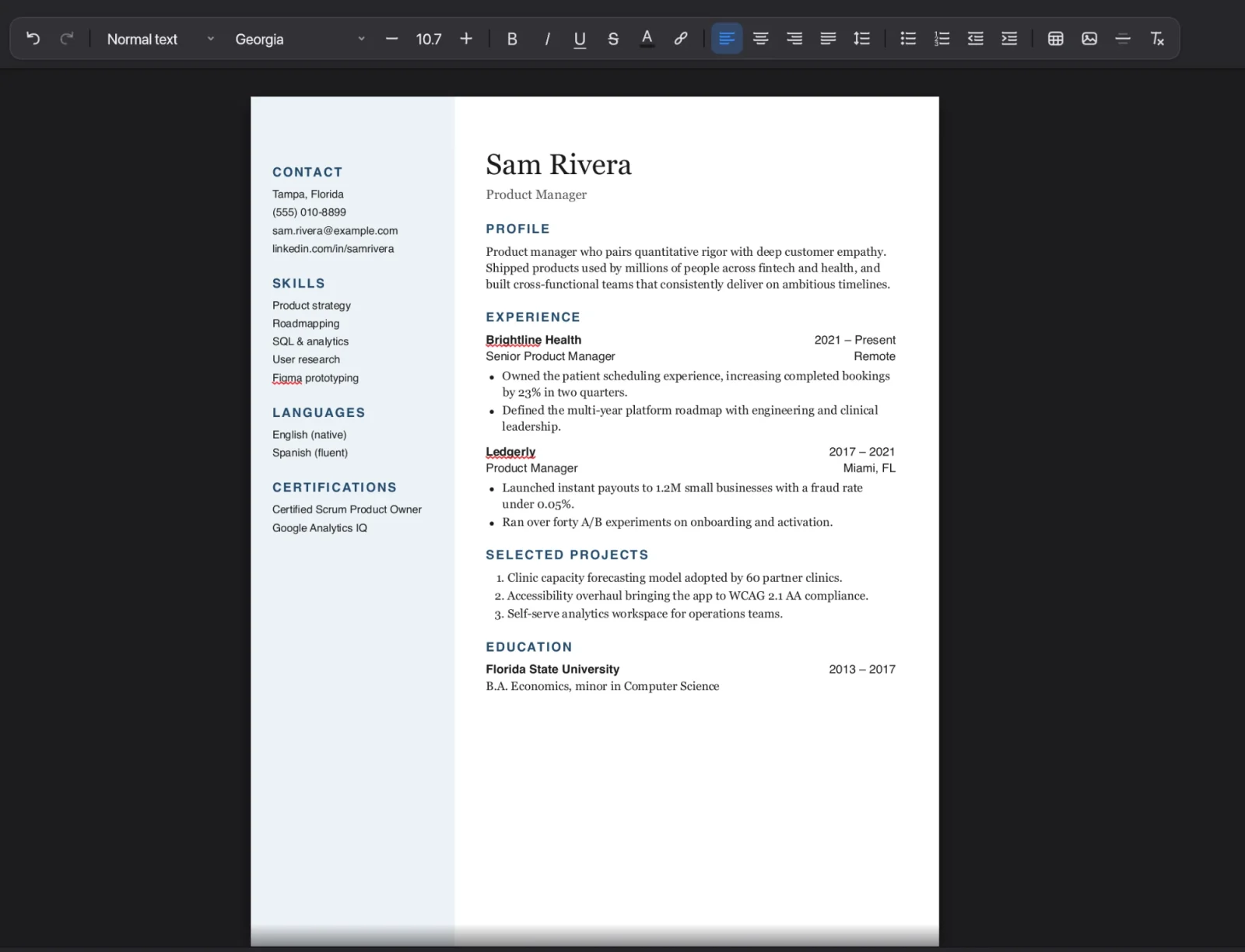
I got tired of the conversion process, so I built Revise, a native Mac app that lets you edit a PDF like a Google Doc. You open the file, click into the text, and start typing. Lines rewrap, lists keep their numbers, tables grow as you add to them, and ⌘S saves it back to the same PDF.
How it works
Since the PDF doesn’t have any structure, Revise has to figure it out from the layout when you open the file. It does that with rules based on the geometry and the fonts. There’s no AI or OCR involved, so the same PDF always comes out the same way. All of the thresholds are measured in ems of the font size, which is why the same rules work on 9 pt body text and a 24 pt name at the top of a resume.
Roughly, it goes like this:
- Group characters into linesIf two characters have baselines within a quarter of an em of each other, they’re on the same line. A gap bigger than 0.15 em means a new word, and anything over 1.2 em splits the line into separate pieces.
- Figure out if it’s columns or a tableIt scans down the page looking for strips of empty space. If most of the lines line up row by row across those gaps, it’s a table. If each side has its own flow of text, it’s columns.
- Join lines into paragraphsA line only gets added to the paragraph above it if its first word wouldn’t have fit at the end of the line before. If it would have fit, that line break was probably on purpose. The size, weight, indent, and line spacing must match too.
- Find lists and headingsBullets and numbers like 1., (3), or iv. turn into list items. Short lines that are bigger than the body text turn into headings, ranked by size.
Resumes needed some special handling. A row like Company -> 2024 – Present looks like a table, but it isn’t. Revise turns it into one paragraph with a right-aligned tab stop, so you can edit the left side and the date stays on the right edge.
Saving
Once the file is open, Revise stops reading from the original PDF. Your edits change its own document model, and the layout, what you see on screen, and the export all come from that. When you save, it writes a brand new PDF with the fonts embedded and real vector text, so it still opens fine in Preview, Acrobat, or a browser. If you open that file in Revise again, the tables, lists, and styles come back exactly how you left them.
It also tries hard not to lose your work. The first time you save over a PDF it keeps a copy of the original, unsaved edits get autosaved every 15 seconds in case it crashes, and it asks before throwing anything away.
Built with
- Language
- Rust
- Reading PDFs
- PDFium
- Text layout
- Parley
- Interface
- egui on wgpu
- Writing PDFs
- krilla
What it’s good at
It works best on normal text documents like resumes, letters, reports, forms, and simple multi-column layouts. It reads the text that’s already in the PDF, so scanned pages can’t be edited, and really design-heavy files like magazines or posters might not come out perfect.
Try it
It’s free and open source. You’ll need an Apple Silicon Mac on macOS 12 or newer. You can download it from the website or install it with Homebrew:
brew install --cask tcmarkfeld/tap/reviseThe whole thing, as a machine
If it helps to picture it: a PDF is like a page of metal type where every letter got glued down wherever it landed, and Revise does the typesetting in reverse.